Guide
How to Translate a PDF Online for Free: Complete Guide
Need to understand a PDF written in another language? Whether it's a report, research paper, user manual, or application form, here's exactly how to translate it — including scanned documents.
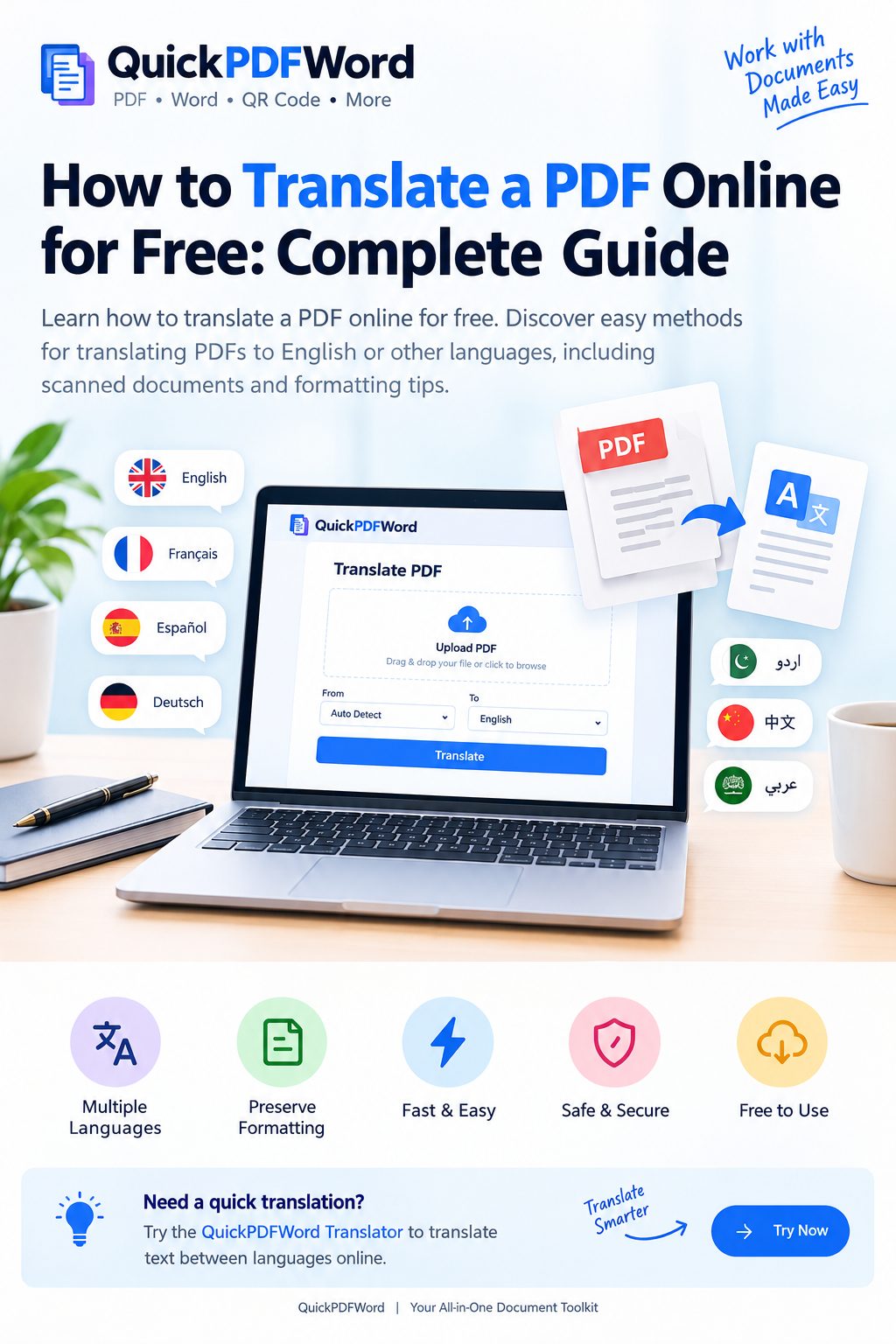
Need to understand a PDF written in another language? Whether it is a report, research paper, user manual, business document, application form, or study material, you do not always need to translate every sentence manually.
Today, you can translate a PDF online using document translation tools and other practical methods. The best method depends on the type of PDF you have. A normal PDF with selectable text is usually easier to process, while a scanned PDF may require OCR before its text can be translated.
In this guide, you will learn how to translate a PDF, how to translate a PDF to English, how to deal with scanned documents, how to reduce formatting problems, and what you should check before using an online PDF translation.
What Is PDF Translation?
PDF translation means converting the written content of a PDF from one language into another language while keeping the information understandable and, when possible, maintaining the document's original structure.
For example, you may want to:
- Translate an English PDF into Urdu
- Translate a Spanish PDF into English
- Translate a French document into English
- Translate a business report for an international client
- Understand a research paper written in another language
- Translate a product manual
- Read educational material in your preferred language
The important thing to understand is that PDF translation is not always the same as translating plain text. A PDF can contain selectable text, images, tables, columns, charts, headers, footers, or scanned pages. These elements can affect how easily the document can be translated and how much of its original formatting can be preserved.
How to Translate a PDF Online
For a normal text-based PDF, the process is relatively simple.
Step 1: Choose a PDF translation method. You can use an online document translator, a translation service, or extract the PDF text and translate it separately. Choose the method based on what you actually need — if you only need to understand the content, extracting and translating the text may be enough.
Step 2: Check your PDF. Before uploading your file, open the PDF and try to select a sentence with your mouse or finger. If you can select individual words, the PDF probably contains a text layer. If you cannot select any text, the pages may be image-based or scanned, and you may need OCR before translation.
Step 3: Select the source and target languages. Choose the language of the original PDF and the language you want to translate it into. If you are not sure about the original language, some translation services provide automatic language detection.
Step 4: Upload or extract the document. Depending on the service, you may be able to upload the PDF directly. Another option is to extract the text first and then translate it using an online translator.
Step 5: Review the translation. Never assume that an automated translation is perfect simply because the words look readable. Pay particular attention to:
- Names, dates, and numbers
- Measurements and technical terms
- Tables and headings
- Addresses and legal terminology
This is especially important when the PDF contains information that could have serious consequences if misunderstood.
How to Translate a PDF to English
Translating a PDF to English is one of the most common reasons people search for online PDF translation. The basic process is:
- Open a document translation tool.
- Upload your PDF if the service supports PDF files.
- Select the original language.
- Select English as the target language.
- Start the translation and review the result.
- Download or save the output if the service provides one.
Most desktop document-translation workflows support PDF uploads within a certain file size and page count, and text found inside images or scanned PDF pages can appear in the output without being translated — always check a service's current limits before relying on it for a large file. That distinction matters: a scanned PDF is not the same as a normal text PDF.
Try the Free TranslatorHow to Translate a Scanned PDF
A scanned PDF is often created by scanning paper pages or saving photographs of documents as PDF pages. The easiest way to identify one is to try selecting text — if you cannot highlight individual words or sentences, the PDF may not contain a usable text layer.
In that case, the general workflow is: Scanned PDF → OCR → Extracted text → Translation → Review.
What is OCR? OCR stands for Optical Character Recognition. OCR software analyzes an image of a document and attempts to identify the characters and convert them into searchable or editable text. After OCR, the extracted text can be translated.
However, OCR is not magic. Poor-quality scans, unusual fonts, handwriting, shadows, tilted pages, stamps, and blurry images can cause recognition errors — which means you should review the extracted text before relying on the translation.
How to Translate a PDF Without Losing Formatting
This is one of the biggest challenges with PDF translation. A PDF can contain multiple columns, tables, images, text boxes, headers and footers, different fonts, page numbers, charts, captions, and special symbols.
When translated text becomes longer or shorter than the original, the layout can change. For example, a sentence that takes one line in English may require more space in another language — pushing text into another line or changing the position of surrounding elements. Layout preservation and OCR accuracy remain two of the biggest ongoing challenges across PDF-translation services.
Tips for better formatting:
- Start with the highest-quality original PDF.
- Check whether the document has selectable text.
- Use OCR for image-only pages.
- Avoid translating screenshots separately unless necessary.
- Review tables after translation.
- Check headings and page breaks.
- Compare important pages with the original PDF.
- Keep a copy of the original document.
If the exact original design is important, always inspect the translated file before sharing or printing it.
Simple Translator vs. Document-Focused Workflow
There is no single method that is perfect for every PDF. A quick online translator is convenient, while a dedicated document-translation workflow may focus more heavily on structure, OCR, layout preservation, or downloadable translated files. Your choice should depend on the job.
Use a simple translator when: you mainly need to understand the text, the PDF is relatively simple, formatting isn't very important, or you only need selected sections translated.
Consider a document-focused workflow when: the PDF contains many pages, it has tables or multiple columns, you need a usable translated document, the original formatting matters, or the PDF contains scanned pages.
For sensitive documents, review the service's privacy and file-handling policies before uploading anything.
Can You Translate a PDF for Free?
Yes, free PDF translation options are available, but the exact limits depend on the service. Some services may limit file size, number of pages, number of translations, supported languages, output formats, or daily usage — so "free" does not necessarily mean unlimited. Before uploading a large document, check the current limits of the service you plan to use.
How Accurate Is Online PDF Translation?
Accuracy depends on several factors: the language pair, quality of the original PDF, sentence complexity, technical terminology, OCR accuracy, context, document formatting, and the translation technology used.
Simple everyday sentences are generally easier to translate than highly specialized material. Extra care is needed for legal contracts, medical documents, financial reports, academic research, technical manuals, government forms, and certificates. For important documents, automated translation should be treated as a starting point rather than a substitute for appropriate human review — ideally including review by a native speaker where the stakes are high.
What to Do If Your PDF Translation Looks Wrong
If the result contains missing text, strange characters, or broken formatting, don't immediately assume the translation itself is the problem — check the original PDF first.
- If the PDF is scanned: run OCR first and check whether the extracted text is correct.
- If tables are broken: try translating the table separately or use a document-aware workflow designed to handle structured documents.
- If text is missing: check whether the original PDF contains selectable text or whether some content is embedded inside images.
- If the layout changed: compare the translated pages with the original and manually correct important formatting.
Can You Translate a PDF on a Phone?
This depends on the translation service. Some services offer mobile-friendly workflows, while others require a desktop browser for document uploads. If you're working from a phone, check whether the specific tool supports direct PDF uploads on mobile before relying on it — copying and pasting extracted text into a mobile-friendly translator is often a reliable fallback.
What If You Only Need to Translate the Text From a PDF?
You do not always need to translate the complete PDF file. If your goal is simply to understand the written content, you can extract or copy the text from the PDF, check that it's correct, paste it into a language translator, select the target language, and review the result. This is especially useful for short documents or individual sections where you care more about understanding the content than reproducing the exact PDF design.
For example, if you've extracted text from an English PDF and need it translated into Urdu, you can use the QuickPDFWord Translator to translate the text between supported languages.
Checklist Before You Translate a PDF
- Check the PDF type — is it a normal text PDF or a scanned document?
- Check the target language — make sure you select the correct language before starting.
- Keep the original — always keep an untouched copy of the source PDF.
- Review important information — double-check numbers, names, dates, addresses, and technical terms.
- Check the layout — look at tables, headings, columns, images, and page breaks.
- Protect sensitive information — think carefully before uploading confidential documents to any online service.
- Review the final translation — automated translation is useful, but important documents deserve additional checking.
Frequently Asked Questions
How can I translate a PDF for free?
Use a free document translation service where available, or extract the PDF text and translate it using a free online translator. Free plans may have file-size, page, language, or usage limits.
Can I translate a PDF to English?
Yes. Upload the PDF to a service that supports document translation, select the original language, choose English as the target language, and review the result.
Can I translate a scanned PDF?
Yes, but a scanned PDF may require OCR first because the text may exist only as an image. OCR converts the image into searchable or editable text before translation.
Can Google Translate translate PDF files?
Google supports PDF document translation on supported desktop workflows, with limits on file size and page count, and text inside scanned PDF images may not be translated. Always check the current limits before uploading a large file.
How do I translate a PDF without losing formatting?
Use a workflow that supports document structure and, where necessary, OCR. After translation, compare the output with the original and check tables, columns, headings, images, and page breaks.
Why is my scanned PDF not translating?
The PDF may contain images rather than selectable text. Run OCR first so that the text can be recognized before translation.
Is online PDF translation accurate?
It can be useful for many documents, but accuracy varies. Technical, legal, medical, and financial documents should receive additional review.
Can I translate a PDF on my phone?
Some services support mobile workflows, but not all do. Check whether the specific tool supports direct PDF uploads on mobile before relying on it.
Final Thoughts
The easiest way to translate a PDF online depends on the type of document you have. For a normal text-based PDF, an online document translator can provide a quick solution. For a scanned PDF, OCR may be required before translation. And if the original layout matters, always inspect the translated document for formatting problems.
Most importantly, don't judge a PDF translation only by whether the words were converted into another language — a useful result should also be readable, understandable, and appropriate for the purpose of the document.
If you only need to translate extracted PDF text between languages, try the QuickPDFWord Translator for a simple, free, browser-based translation workflow.